Introduction
Gone are the days when gaming on Linux meant struggling with Wine configurations for hours just to launch a single title. Thanks to Valve’s heavy investment in the Steam Deck and the Proton compatibility layer, a dedicated Linux gaming PC build is now a formidable alternative to Windows. Building your own rig allows you to escape the bloatware and telemetry of proprietary operating systems while enjoying a highly customizable, efficient, and private gaming environment. However, hardware compatibility on Linux varies significantly compared to the Windows ecosystem. This guide serves as your comprehensive roadmap, detailing the exact hardware choices that play nicely with the penguin to ensure a smooth plug-and-play experience.
Before You Start: Define Your Linux Gaming
Goals Before purchasing components, it’s crucial to understand what you want to achieve with your Linux gaming PC build. Linux handles gaming differently than Windows, particularly regarding anti-cheat software and display servers.

What Type of
Gamer Are You? If you’re a competitive esports player heavily invested in titles like Valorant or Call of Duty, you must verify anti-cheat compatibility, as kernel-level anti-cheats often block Linux. However, for single-player AAA titles, indie games, and games compatible with the Steam Deck, Linux offers performance that often rivals or exceeds Windows. Streamers should also note that OBS Studio runs natively on Linux, but hardware encoding support varies by GPU vendor.
Resolution, Refresh
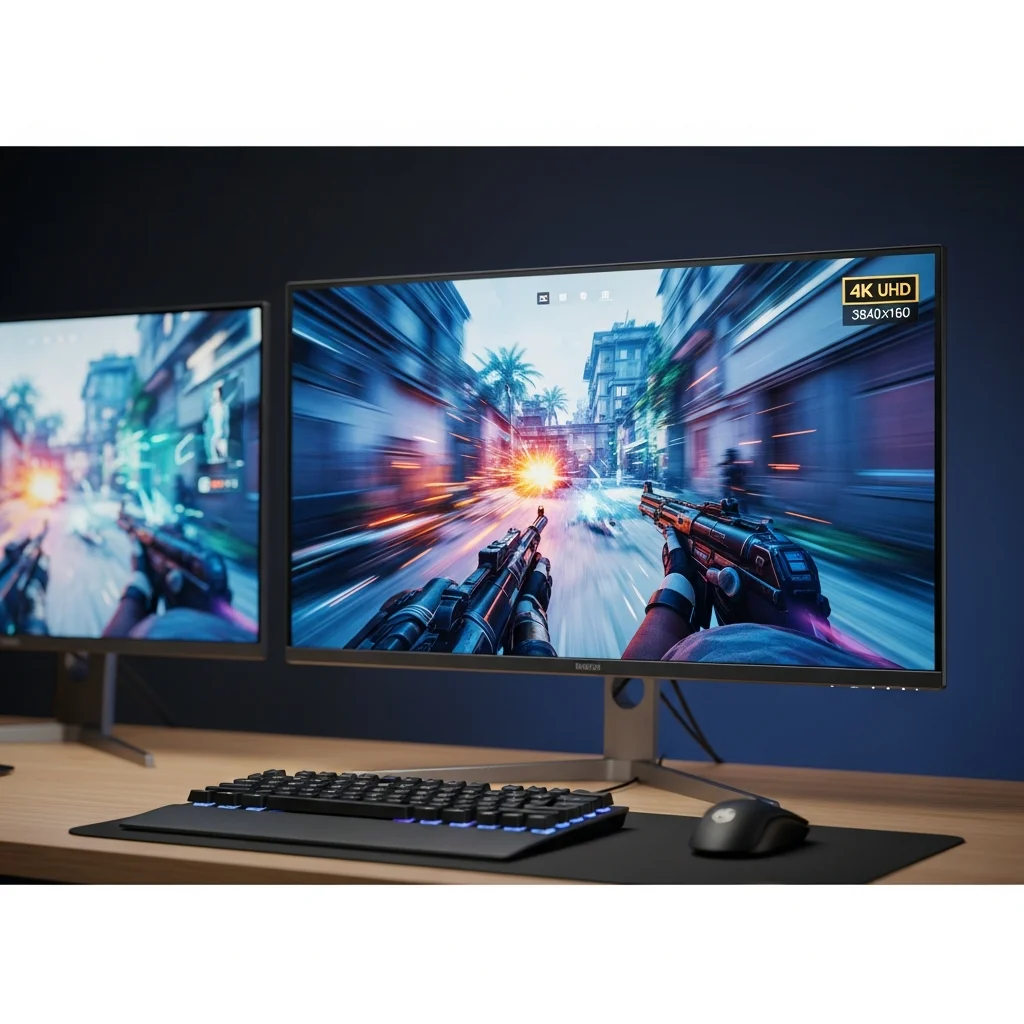
Rate & Compositors Your target resolution (1080p, 1440p, or 4K) dictates your GPU power, but in the Linux world, your choice of display server—Wayland or X11—matters just as much. High refresh rate gaming (144Hz+) is smoother on Wayland, which handles multiple monitors with different refresh rates far better than the aging X11 standard. If you plan on a multi-monitor setup with mixed refresh rates, your hardware choice must support Wayland standards perfectly.
Budget Planning for Linux Compatibility
A Linux gaming PC build generally costs the same as a Windows PC in terms of hardware, but you save the cost of a Windows license ($100+). Budgeting should focus on hardware with open-source driver support, which often provides better longevity. We’ll break down budgets from $800 entry-level systems to $2500 powerhouses.
Choosing the
Right Components: The Linux Perspective Not all hardware is created equal when the kernel loads. This section explains the best components for Linux gaming PC setups to avoid driver headaches.
CPU: Intel vs. AMD Both
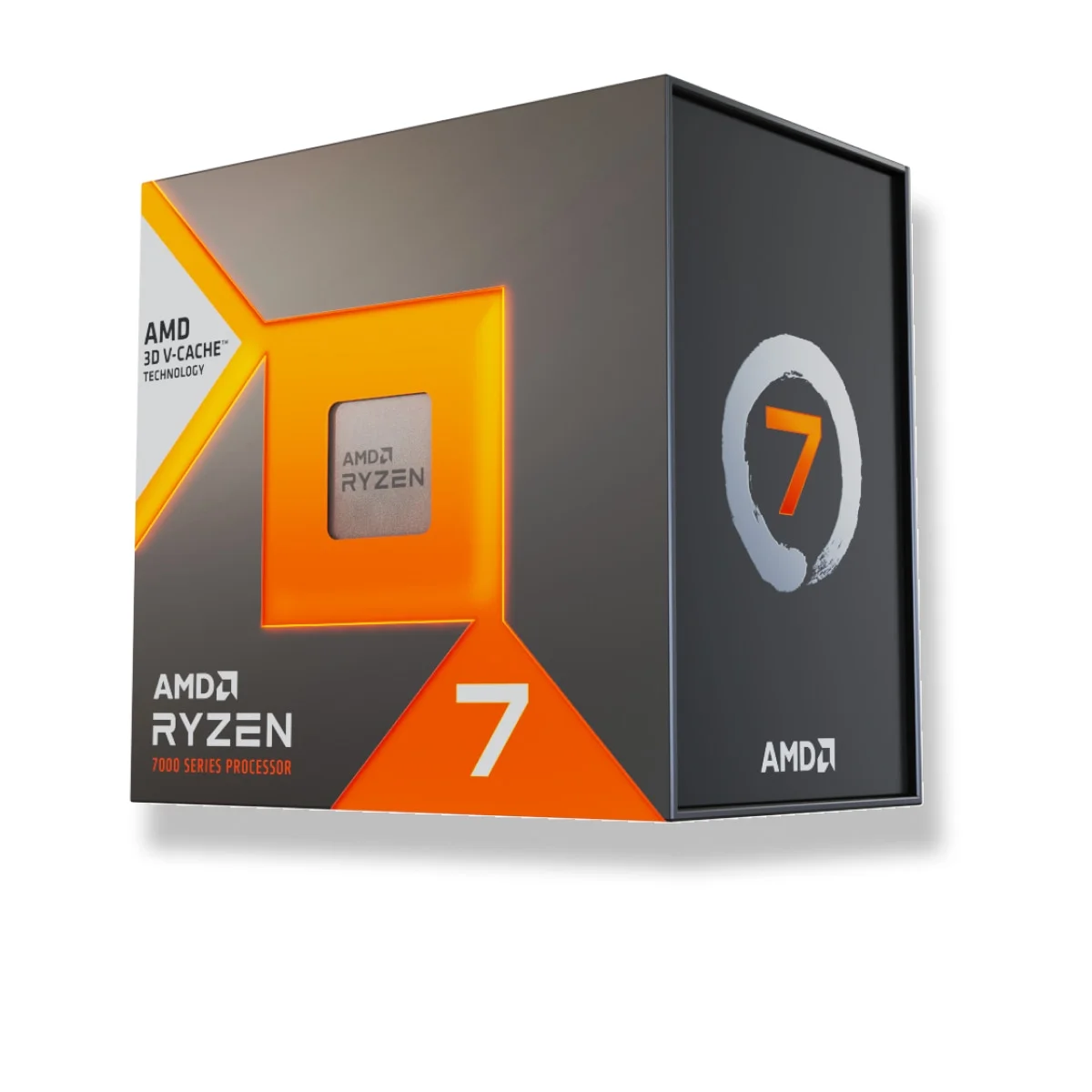
Intel and AMD CPUs work excellently on Linux. However, AMD Ryzen processors often have a slight edge due to the open nature of their ecosystem. If choosing Intel’s 12th, 13th, or 14th Gen chips with P-cores and E-cores, ensure you use a modern Linux kernel (6.5+) to ensure the scheduler properly assigns gaming tasks to performance cores. For a pure Linux gaming PC build, the AMD Ryzen 7 7800X3D is currently the king of efficiency and performance.
GPU: The Red
Team Advantage This is the most critical component for a Linux gaming PC setup guide.
-
AMD Radeon: Generally preferred for Linux. They use the open-source Mesa (RADV) drivers which are built directly into the kernel. This means ‘it just works’ out of the box with no manual driver installation required. They also have superior compatibility with Gamescope and Wayland.
-
NVIDIA: While powerful, Nvidia relies on proprietary drivers. Although the situation has improved significantly with the 555+ driver series, users may still encounter occasional friction with Wayland compositors or initial setup steps compared to AMD’s plug-and-play nature. For the smoothest experience, AMD is recommended for beginners.
Motherboard & Chipsets
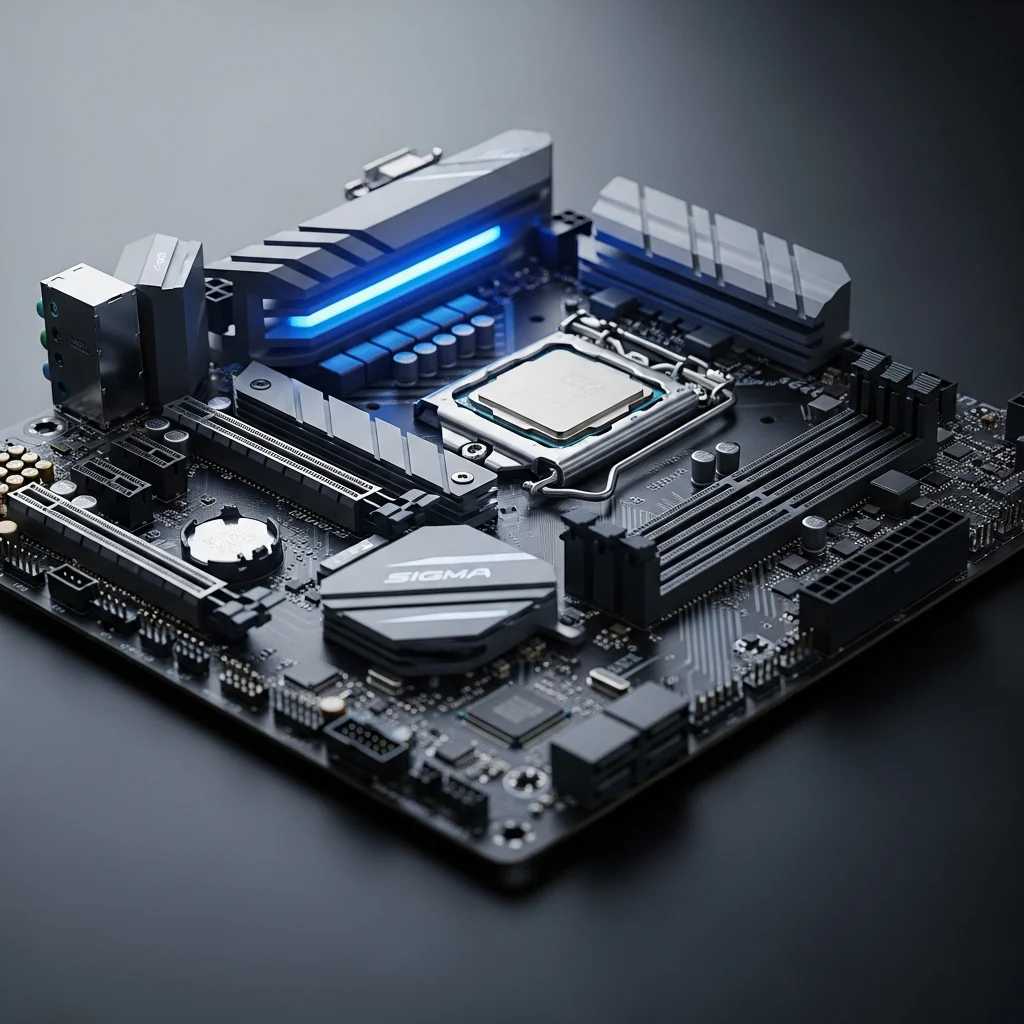
While the chipset (B650, Z790) dictates CPU compatibility, Linux builders need to watch the peripheral controllers. Look for motherboards with Intel or Realtek Ethernet/Wi-Fi chips, as they have excellent kernel support. Avoid obscure or brand-new Wi-Fi modules that might not yet have drivers in the mainline kernel. Also, check if the motherboard’s RGB lighting is supported by OpenRGB, as you won’t be able to run proprietary Windows software to control lights.
RAM
Linux is efficient with memory, but modern gaming demands remain high. 32GB of DDR5-6000 CL30 is the sweet spot for Ryzen 7000 series builds. Ensure you enable EXPO/XMP in the BIOS. There’s no Linux-specific RAM, but standard kits from G.Skill or Corsair work flawlessly.
Storage: Filesystems
Matter NVMe SSDs are essential. Ideally, choose a Gen4 NVMe drive like the Samsung 990 Pro or WD Black SN850X. When formatting for Linux, you’ll likely use EXT4 or BTRFS filesystems. BTRFS offers advanced features like snapshots (allowing you to roll back your system if an update breaks something) and transparent compression, which can save space on your game library.
Power Supply (PSU)
Never skimp on the PSU. A reliable Gold-rated unit from Corsair, Seasonic, or EVGA protects your investment. Linux power management is solid, but a quality PSU ensures stable voltage delivery during heavy compilation tasks or gaming sessions.
Operating System: Choosing a
Distro For a pure gaming experience, standard desktop Linux distributions are good, but gaming-focused ones are better:
-
Bazzite / ChimeraOS: These offer a ‘Steam Deck-like’ experience on desktop, booting directly into Steam Big Picture mode.
-
Nobara Project: A version of Fedora tweaked by GloriousEggroll (Proton developer) with pre-applied gaming patches.
-
Pop!_OS: Excellent for beginners, especially if you choose to use an Nvidia GPU, as they provide a separate ISO with drivers pre-installed.
Example Linux PC Builds
Here are three curated part lists designed for maximum compatibility and performance for your Linux gaming PC build.
Build 1: The ‘Console Killer’ Budget Build
Ideal for 1080p gaming and esports, this build relies on AMD’s incredible open-source driver maturity.
Build 2: The
Mid-Range Sweet Spot (1440p) The perfect balance of price and performance, using the best value components on the market.
Build 3: The
Ultimate Linux Workstation For 4K gaming, streaming, and heavy compilation workloads.
How to Build
Your Linux Gaming PC (Step-by-Step) Follow this Linux gaming PC setup guide to assemble your hardware and install your operating system.
Step 1: Assembly
Preparation Clear a large table. Have a Phillips #2 screwdriver ready. Ground yourself by touching a metal object to discharge static. Ensure you have a USB flash drive (at least 16GB) to create your Linux installation media.
Step 2: CPU & RAM Installation
Place the motherboard on its box. Lift the CPU retention arm. Align the triangle on the CPU with the triangle on the socket and gently drop it in—zero force required. Lock the arm down. For RAM, consult your motherboard manual (usually slots 2 and 4). Push the sticks down until they click firmly.
Step 3: M.2 SSD Installation
Locate the M.2 slot nearest to the CPU. Remove the heat sink screws. Insert the SSD at a 30-degree angle and press it down. Secure it with the screw or latch, and reattach the heat sink. Peel off any plastic from the thermal pads.
Step 4: Case & Motherboard Mounting
Install the I/O shield (if not pre-installed) into the case rear. Screw in the standoffs if necessary. Lower the motherboard into the case, aligning it with the standoffs. Secure it with the provided screws, but don’t overtighten.
Step 5: PSU & Cabling
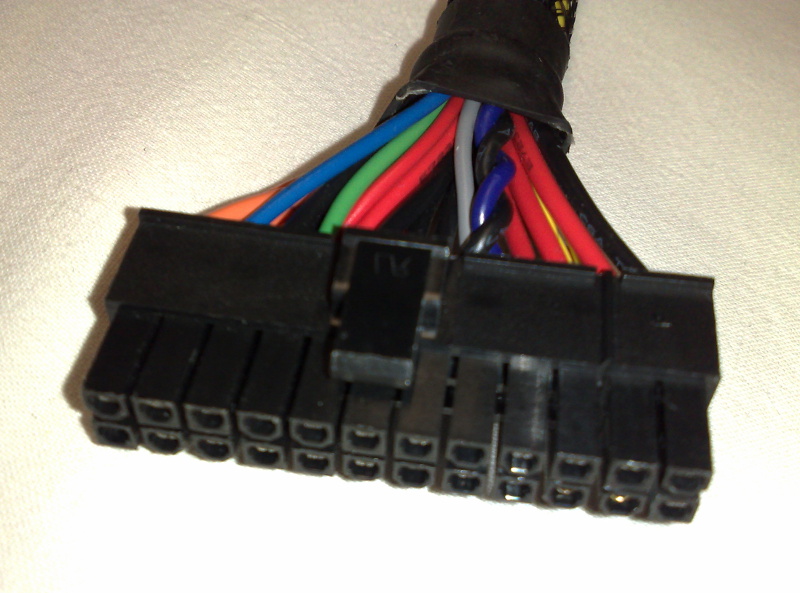
Slide the PSU into the bottom of the case and screw it in. Route the 24-pin motherboard power and 8-pin CPU power cables behind the motherboard tray and plug them in. Good cable management aids airflow.
Step 6: GPU Installation
Remove the PCIe slot covers on the back of the case. Open the PCIe latch on the motherboard. Push the GPU into the top slot until it clicks. Screw the bracket into the case. Connect the PCIe power cables from the PSU to the GPU.
Step 7: First
Boot & BIOS Connect your monitor and keyboard. Power on. Press the Delete key to enter BIOS. Enable XMP/EXPO for your RAM speed. IMPORTANT: Disable ‘Secure Boot’ temporarily if you plan to install certain Linux distros or drivers that aren’t signed, though major distros like Fedora and Ubuntu handle Secure Boot well.
Step 8: Installing
Linux On another computer, download your chosen ISO (e.g., Bazzite, Nobara, or Ubuntu). Use a tool like BalenaEtcher to flash it to your USB drive. Plug the USB into your new PC, boot from it, and follow the on-screen installer. Select ‘Erase Disk’ for a fresh install. Once installed, update your system via the terminal (sudo apt update && sudo apt upgrade or equivalent).
Common Mistakes to
Avoid Even experienced builders can stumble when shifting to a Linux gaming PC build.
-
Buying RGB components that rely on software bloat: Avoid hardware that requires proprietary Windows apps (like NZXT CAM or Corsair iCUE) for basic functionality. Stick to hardware that saves profiles to onboard memory or is supported by OpenRGB.
-
Wireless Peripheral Incompatibility: Some specialized gaming headsets or mice have drivers only for Windows. Check for Linux compatibility lists before buying.
-
Ignoring the PSU Quality: A cheap PSU can fry your components. Always check the ‘PSU Tier List’ online and aim for Tier A or B.
Upgrade Paths for the
Future One of the best parts of a PC build is upgradability. On Linux, upgrading is often easier as drivers for new GPUs (especially AMD) are included in kernel updates. Prioritize upgrading your GPU first for gaming gains. If you started with 16GB of RAM, moving to 32GB is a cheap and effective upgrade. Adding more NVMe storage is also simple; Linux mounts new drives easily without formatting the whole system.
Frequently Asked
Questions Answers to common queries about building a Linux gaming rig.
Can I play all my
Windows games on Linux? Not all, but most. Games using kernel-level anti-cheat (like Valorant, Roblox, or League of Legends recently) may not work. Check ProtonDB.com to see the compatibility status of your favorite games.
Is AMD really better than
Nvidia for Linux? For a hassle-free, open-source experience, yes. AMD drivers are built into the OS. Nvidia works well and offers great performance, but it requires proprietary drivers and can occasionally have syncing issues with Wayland, though this is rapidly improving.
Do I need antivirus for my
Linux gaming PC? Generally, no. Linux permissions structure makes it far more secure than Windows. Common sense regarding what you download is your best defense.
Final Thoughts
Building a dedicated Linux gaming PC in 2025 is a liberating experience. You gain full ownership of your hardware, superior privacy, and an operating system that doesn’t force updates during a ranked match. By choosing the best components for a Linux gaming PC—specifically prioritizing AMD GPUs and compatible peripherals—you can build a machine that rivals any Windows setup. Whether you choose a user-friendly distro like Bazzite or a powerhouse like Arch, the world of Linux gaming is ready for you.